
How to Add Additional Font Style in the Designer
If you want to use a custom font for your merchandise, you can upload your own font style directly in the Designer. Here’s how:
1. Open the Designer
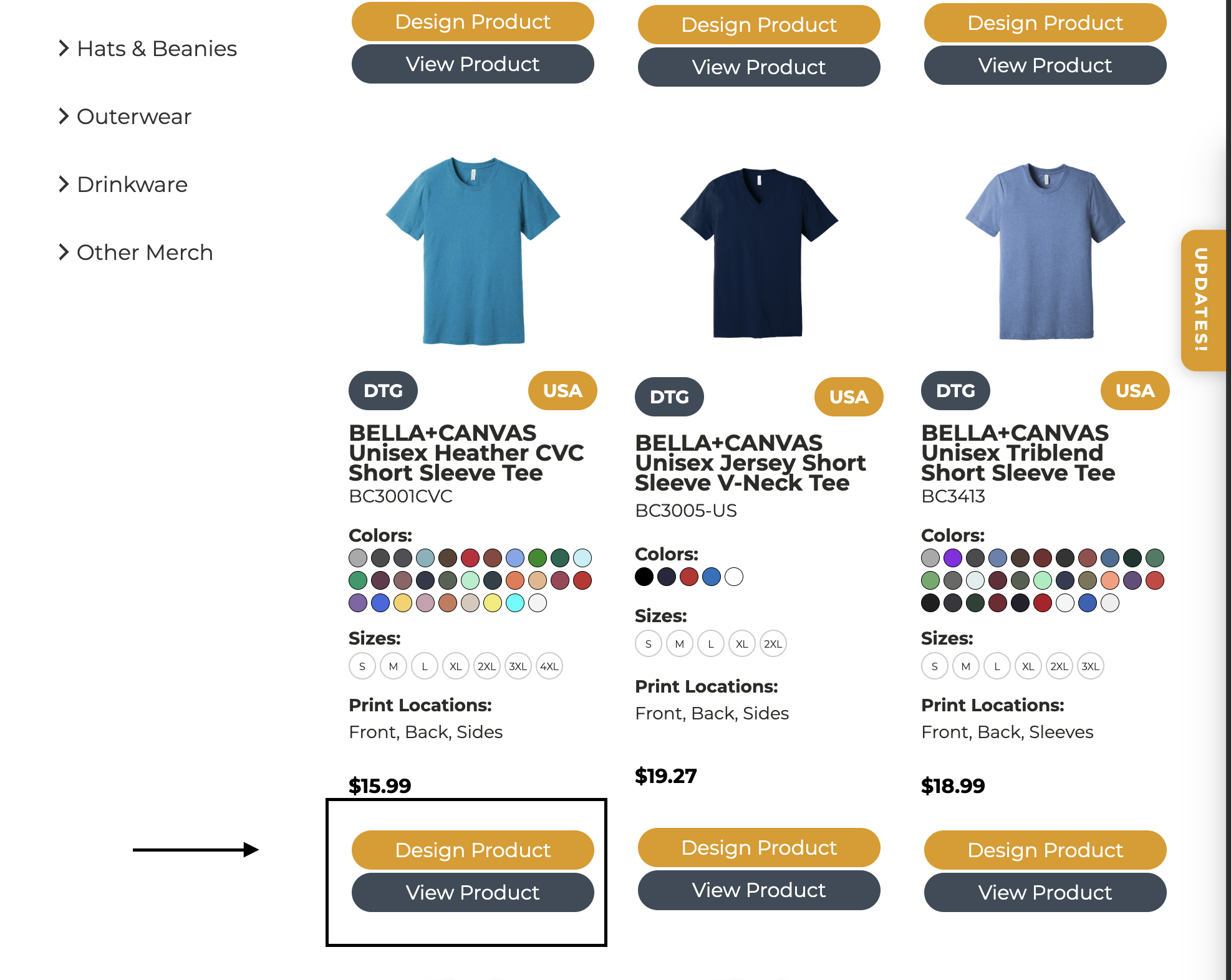
Go to any product and click Design Product to launch the Designer.
2. Add Your Text
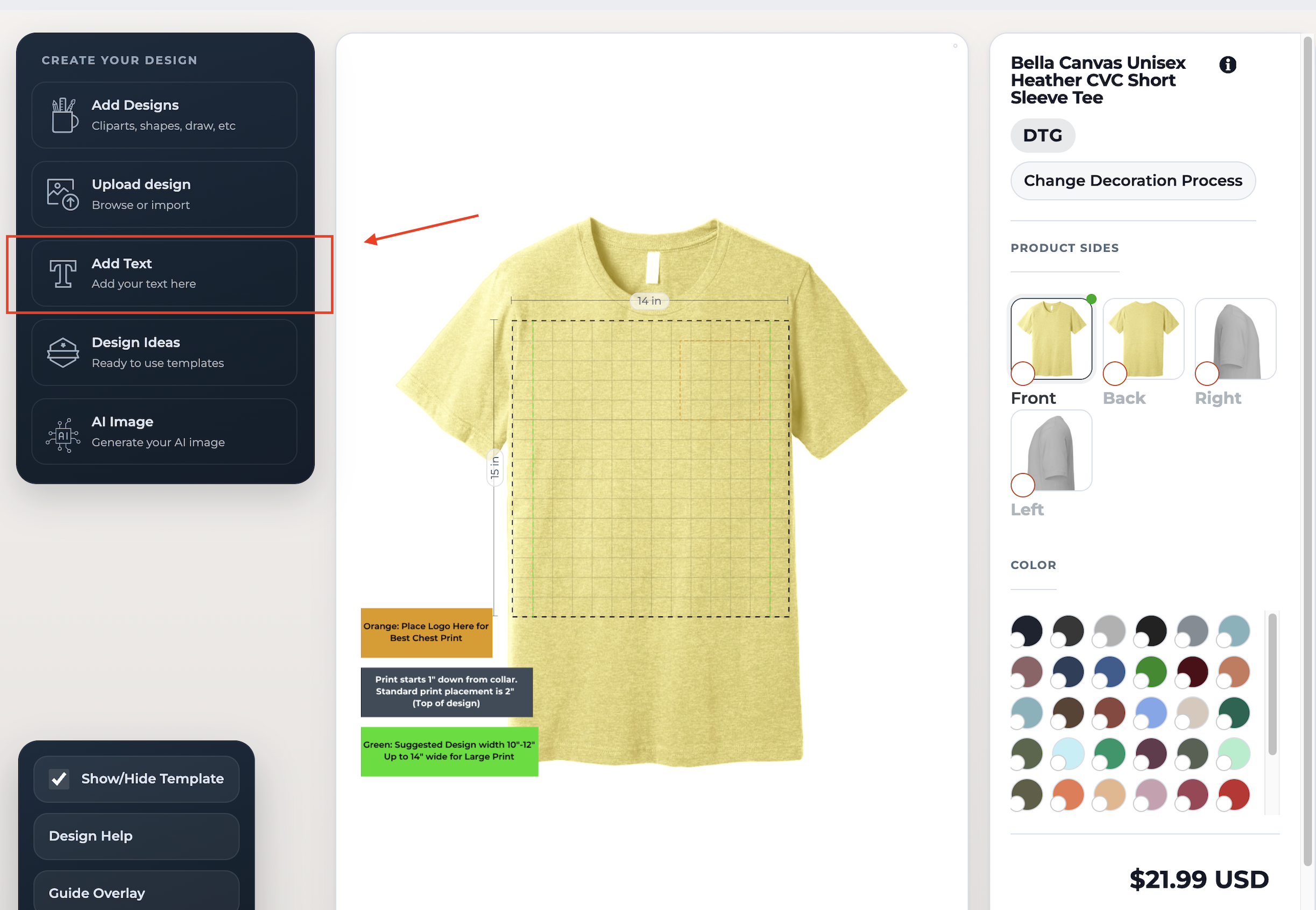
Click Add Text on the left toolbar.
Type in the text you want to customize.
3. Open the Font Options
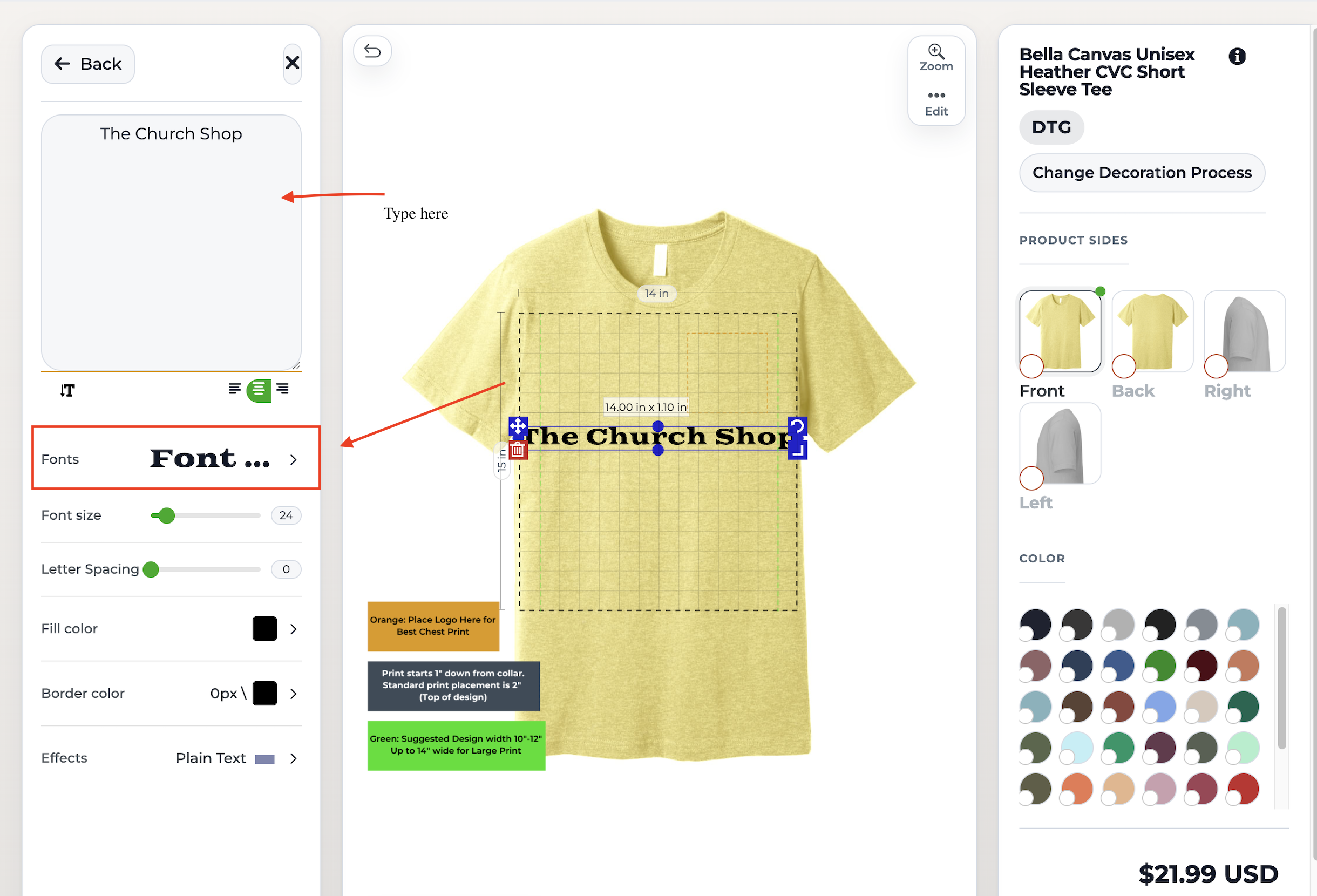
After typing your text, an information panel will pop up on the left.
Click Fonts.
4. Scroll to the Bottom
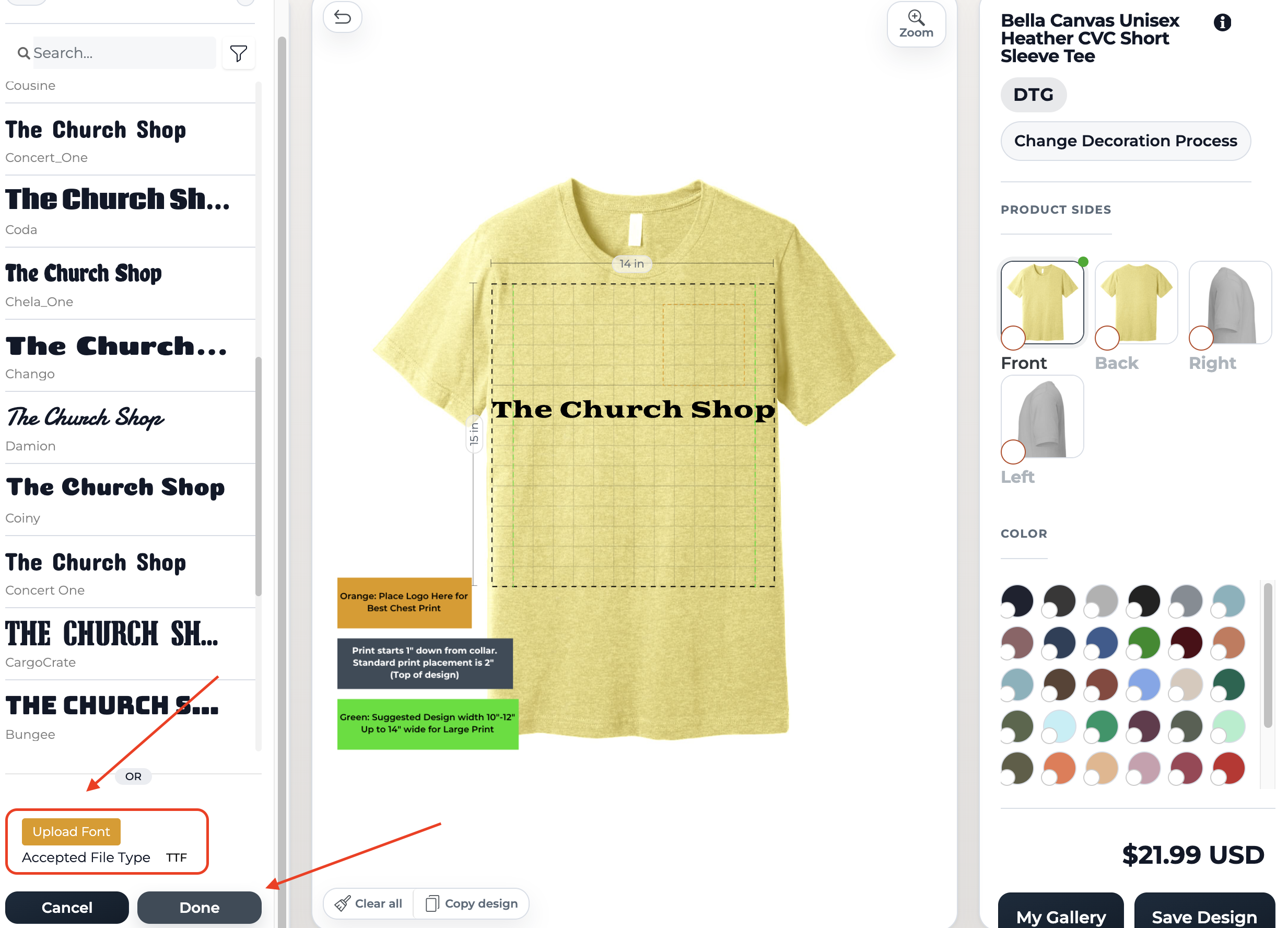
Scroll all the way down in the font list.
You’ll see the option to Upload Font.
5. Upload Your Font File
Select your font file (.TTF).
Once uploaded, it will appear in your font list and you can apply it to your text.
⏳ About Storage & Saving
Uploaded fonts are saved temporarily and may be cleared after a few days.
To avoid losing your work, make sure to save your designs in your Gallery.
Saving designs in your Gallery ensures your uploaded font is preserved with that specific design.
Need Help?
If you run into any issues or have questions, free to email us at support@thechurch.shop.