
How to Update Your Store's Sharing Image
Your store's sharing image is the preview image that appears when someone shares your store link on social media or in messaging apps.
Step 1: Update Your Store's Sharing Image
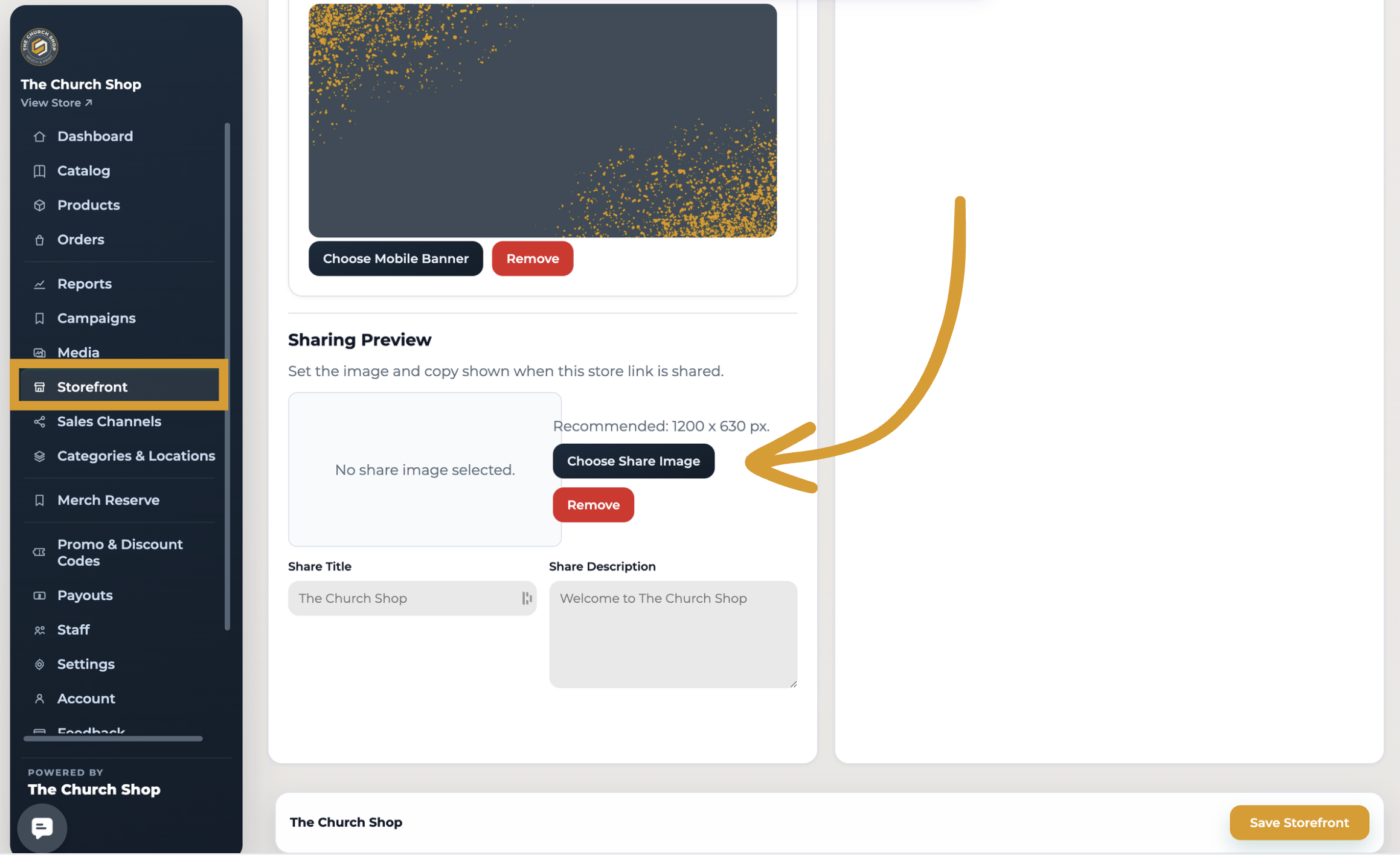
Log in to your admin panel.
Go to Storefront.
Under Sharing Preview, click Choose Share Image.
Upload your new image.
Recommended image size: 1200 × 630 px
Once you've uploaded your new image, allow a few minutes for our servers to process the update and refresh the cache.
Step 2: Refresh Facebook's Cache
If Facebook or Messenger is still showing the old image, you'll need to refresh Facebook's cached preview.
Visit the Facebook Sharing Debugger.
Enter your store URL.
Click Debug (or Scrape Again if you've already used the tool).
This tells Facebook to fetch the latest version of your sharing image.
Still Seeing the Old Image?
Some social media platforms and messaging apps may continue displaying an older cached image for a short time. If you've updated your sharing image and refreshed Facebook's cache, the new image should begin appearing once the platform's cache updates.
If you continue experiencing issues, please contact our Support Team at support@thechurch.shop. We're happy to help!