How to Add New Staff to Your Dashboard
This feature is exclusively available for Premium membership plans. If you’re not on a Premium plan, consider upgrading to access this functionality.
Log in to Your Dashboard
Ensure you’re logged into your account with Full Admin Permissions, as this feature requires administrative access.Navigate to the "Staff" Option
On the left-hand menu of your Dashboard, select the option labeled " Staff."Fill Out Staff Details
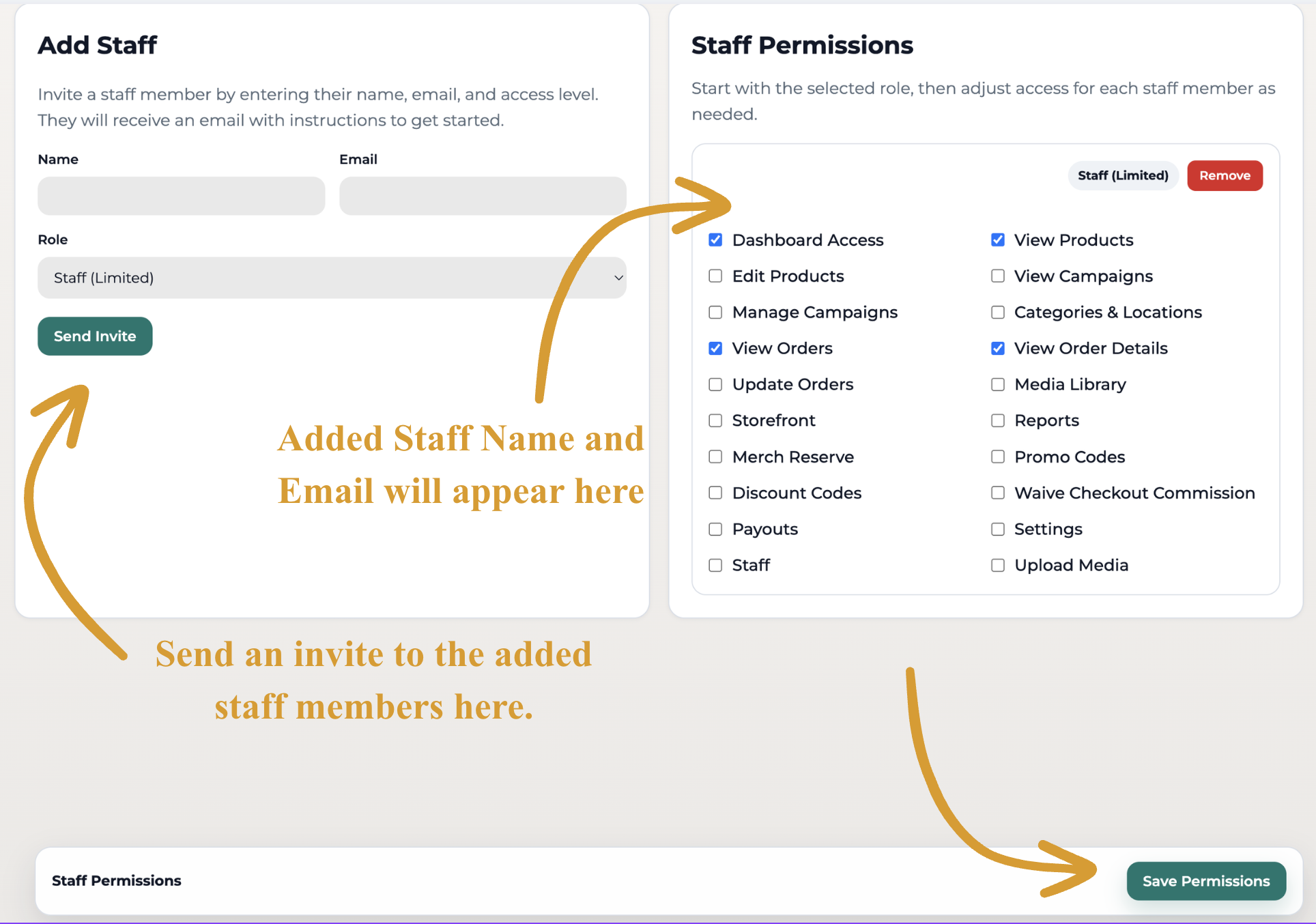
A form will appear where you can:Enter the staff member’s required information, such as name, email, and contact details.
Assign specific capabilities or roles to the new staff member based on their responsibilities.
Save the Details
Once all required fields are completed, click "Save Permissions" to add the staff member to your system.
Staff Access
Staff access is available with Premium membership. Once enabled, you can add team members from your dashboard by going to Staff, entering their information, assigning their permissions, and saving the details.
There are two access levels available for Staff Access:
Staff Limited allows you to select the specific permissions each staff member should have by checking or unchecking access options. This is helpful if someone only needs access to certain areas, such as products, reports, or payouts.
Staff Full gives broader access across the dashboard. You can still adjust permissions as needed. This option is best for team members who need access to most areas of the store.
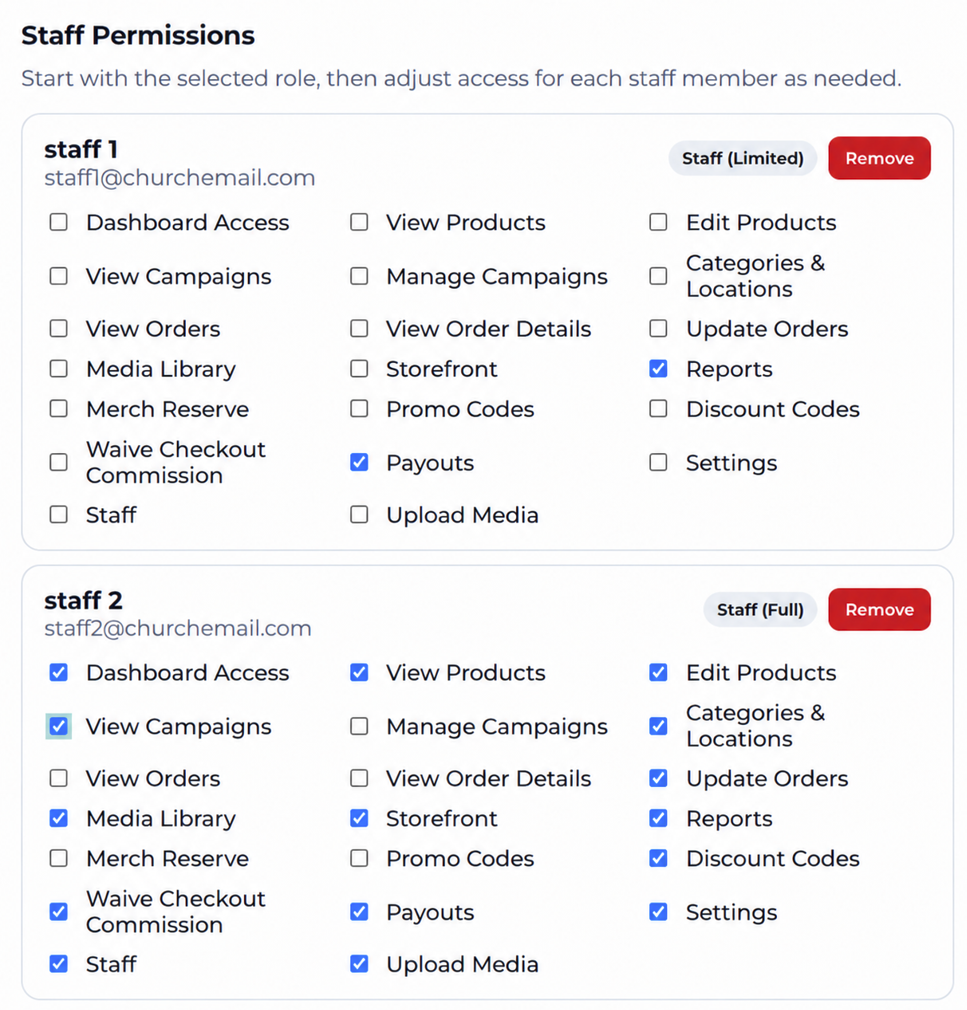
Staff Access gives your church flexibility to assign access based on each person’s role, whether they are helping with products, orders, campaigns, reports, or payouts.
📩 Questions?
Feel free to reach out to our team. Email us anytime at support@thechurch.shop, and we’ll be happy to help!