Optimize Artwork - Embroidery
Optimize for Embroidery
If your design looks rough, pixelated, or unclear in the preview, the Optimize for Embroidery tool can help clean it up before embroidery.
This feature improves the quality of your artwork by converting it into smoother, sharper lines, which helps prevent common embroidery issues like broken logos, jagged edges, or thin text that doesn’t stitch well.
How to use it
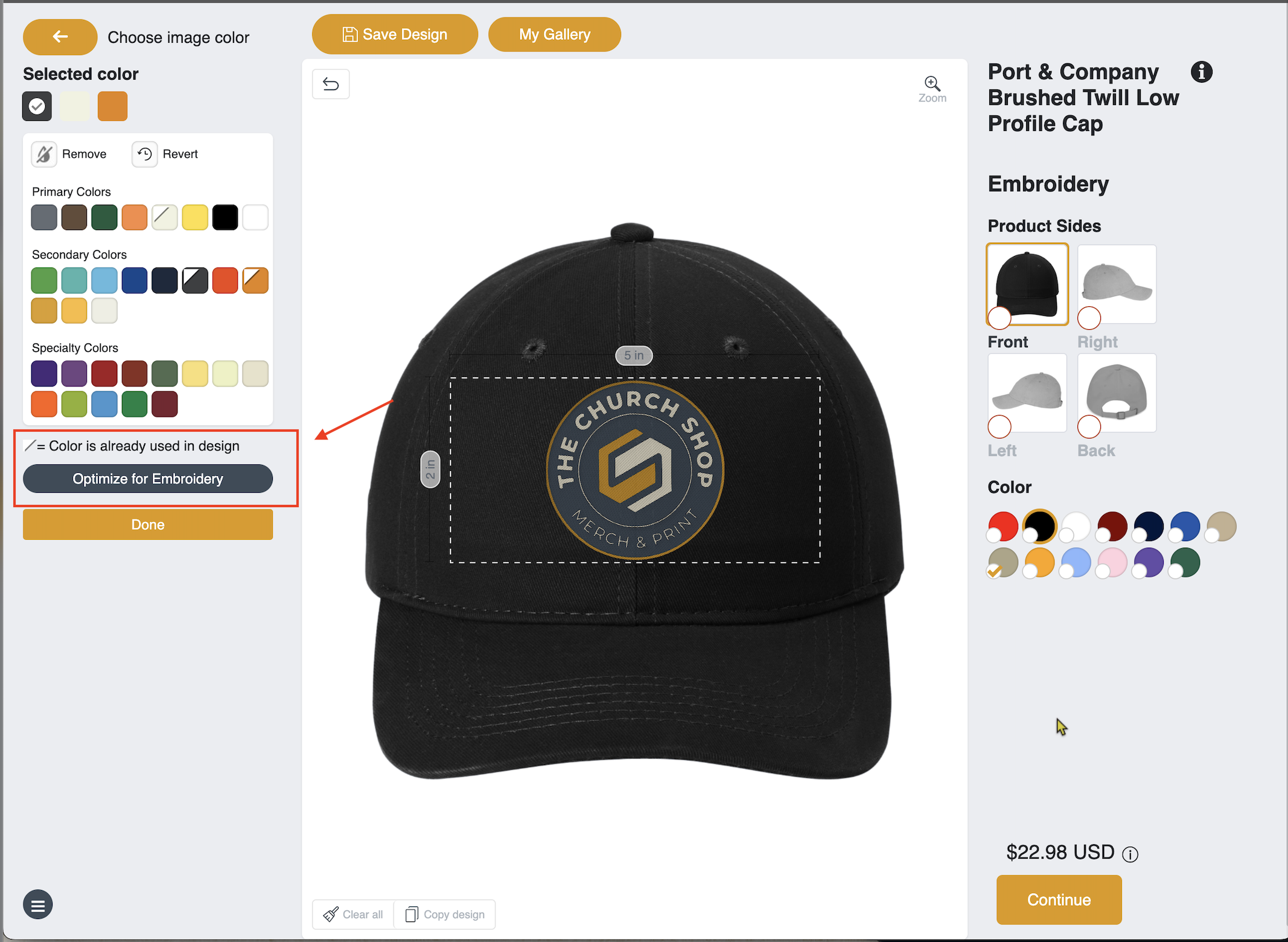
Simply open Edit Design, upload your artwork, and click Optimize for Embroidery. Once applied, review the updated preview and save your design.
Below highlights where you can find the Optimize for Embroidery in the Edit Design Tool.
A quick tip
While this tool can greatly improve your design, uploading high-quality files such as SVG or AI will always produce the best embroidery results.
Still need help? If you have questions or need assistance, feel free to reach out to us at support@thechurch.shop.